Topics:Computer musical instruments, graphical user interfaces, graphics objects and widgets, event-driven programming, callback functions, Play class, continuous pitch, audio samples, MIDI sequences, paper prototyping, iterative refinement, keyboard events, mouse events, virtual piano, parallel lists, scheduling future events.
This chapter explores graphical user interfaces and the development of interactive musical instruments. Interactive computer-based musical instruments offer considerable versatility. They can be used by a single performer or by multiple performers in ensembles, like Laptop Orchestras. It is also possible to have an ensemble that includes both traditional instruments and computer-based instruments. More information is provided in the reference textbook.
A display’s origin – (0, 0) – is at the top-left corner. The coordinates x, y above specify where to place the object in the display.
For example, the following code:
1 2 3 4 5 6 7 8 9101112131415
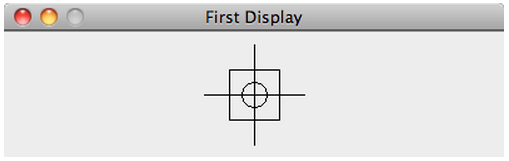
fromguiimport*d=Display("First Display",400,100)c=Circle(200,50,10)# x, y, and radiusd.add(c)r=Rectangle(180,30,220,70)# left-top and right-bottom cornersd.add(r)l1=Line(160,50,240,50)# x, y of two endpointsd.add(l1)l2=Line(200,10,200,90)d.add(l2)
draws the following shape:
Displays may contain any number of GUI components, but they cannot contain another display.
A program may have several displays open. Also, a program can specify where a display is placed on the screen.
Random circles on a Display
This code sample (Ch. 8, p. 246) demonstrates how to create a Display and draw random filled Circles on it. It combines some of the programming building blocks we have learned so far (namely randomness, loops, and GUI functions).
Every time you run this program, it generates 1000 random circles and places them on the created display.
# randomCircles.py## Demonstrates how to draw random circles on a GUI display.#fromguiimport*fromrandomimport*numberOfCircles=1000# how many circles to draw# create displayd=Display("Random Circles",600,400)# draw various filled circles with random position, radius, colorforiinrange(numberOfCircles):# create a random circle, and place it on the display# get random position and radiusx=randint(0,d.getWidth()-1)# x may be anywhere on displayy=randint(0,d.getHeight()-1)# y may be anywhere on displayradius=randint(1,40)# random radius (1-40 pixels)# get random color (RGB)red=randint(0,255)# random R (0-255)green=randint(0,255)# random G (0-255)blue=randint(0,255)# random B (0-255)color=Color(red,green,blue)# build color from random RGB# create a filled circle from random valuesc=Circle(x,y,radius,color,True)# finally, add circle to the displayd.add(c)# now, all circles have been added
Here is the output:
A simple musical instrument
This code sample (Ch. 8, p. 251) demonstrates event-driven programming. It creates a GUI consisting of two buttons. The first starts a note. The second stops the note. Each button utilizes its own callback function, which performs the desired functionality, when (and if) the button is pressed.
# simpleButtonInstrument.py## Demonstrates how to create a instrument consisting of two buttons,# one to start a note, and another to stop it.#fromguiimport*frommusicimport*# create displayd=Display("Simple Button Instrument",270,130)pitch=A4# pitch of note to be played# define callback functionsdefstartNote():# function to start the noteglobalpitch# we use this global variablePlay.noteOn(pitch)# start the notedefstopNote():# function to stop the noteglobalpitch# we use this global variablePlay.noteOff(pitch)# stop the note# next, create the button widgets and assign their callback functionsb1=Button("On",startNote)b2=Button("Off",stopNote)# finally, add buttons to the displayd.add(b1,90,30)d.add(b2,90,65)
Here is a demo of interacting with this program:
An audio instrument for continuous pitch
This code sample (Ch. 8, p. 256) demonstrates how to use GUI components to create a simple instrument for changing the volume and frequency of an audio loop in real time.
Here is the program. It uses an audio sample from Moondog’s Lament I, “Bird’s Lament”. You should save moondog.Bird_sLament.wav in the same folder as the program, prior to running it.
# continuousPitchInstrumentAudio.py## Demonstrates how to use sliders and labels to create an instrument# for changing volume and frequency of an audio loop in real time.#fromguiimport*frommusicimport*# load audio samplea=AudioSample("moondog.Bird_sLament.wav")# create displayd=Display("Continuous Pitch Instrument",270,200)# set slider ranges (must be integers)minFreq=440# frequency slider rangemaxFreq=880# (440 Hz is A4, 880 Hz is A5)minVol=0# volume slider rangemaxVol=127# create labelslabel1=Label("Freq: "+str(minFreq)+" Hz")# set initial textlabel2=Label("Vol: "+str(maxVol))# define callback functions (called every time the slider changes)defsetFrequency(freq):# function to change frequencygloballabel1,a# label to update, and audio to adjusta.setFrequency(freq)label1.setText("Freq: "+str(freq)+" Hz")# update labeldefsetVolume(volume):# function to change volumegloballabel2,a# label to update, and audio to adjusta.setVolume(volume)label2.setText("Vol: "+str(volume))# update label# next, create two slider widgets and assign their callback functions#Slider(orientation, lower, upper, start, eventHandler)slider1=Slider(HORIZONTAL,minFreq,maxFreq,minFreq,setFrequency)slider2=Slider(HORIZONTAL,minVol,maxVol,maxVol,setVolume)# add labels and sliders to displayd.add(label1,40,30)d.add(slider1,40,60)d.add(label2,40,120)d.add(slider2,40,150)# start the sounda.loop()
Here is a demo of interacting with this program:
Changing the background color interactively
This code sample demonstrates how to use sliders to update values in real time. It creates a GUI consisting of three Slider and several Label widgets. The sliders control the color of the Display by updating its RGB values. Similar code can be written to control any type of useful parameters.
# RGB_Display.py## Demonstrates how to use sliders to update values in real time (here, the# background color of the display). It also uses labels to provide additional# feedback and visibility (by showing updated RGB values).#fromguiimport*# create displayd=Display("RGB Display",600,400)# initialize RGB values (0-255)red=255green=255blue=255# initialize display background to these RGB valuesd.setColor(Color(red,green,blue))# create labels for the sliders with black text and white backgroundlabelRed=Label(" R ",CENTER,Color.BLACK,Color.WHITE)labelGreen=Label(" G ",CENTER,Color.BLACK,Color.WHITE)labelBlue=Label(" B ",CENTER,Color.BLACK,Color.WHITE)# add labels to displayd.add(labelRed,180,132)d.add(labelGreen,180,182)d.add(labelBlue,180,232)# create labels for the sliders' values with black text and white backgroundlabelRedValue=Label(" "+str(red)+" ",CENTER,Color.BLACK,Color.WHITE)labelGreenValue=Label(" "+str(green)+" ",CENTER,Color.BLACK,Color.WHITE)labelBlueValue=Label(" "+str(blue)+" ",CENTER,Color.BLACK,Color.WHITE)# add labels for values to displayd.add(labelRedValue,400,132)d.add(labelGreenValue,400,182)d.add(labelBlueValue,400,232)# define function to update red valuedefsetRed(value):globald,red,green,blue,labelRedValuered=value# update red valuelabelRedValue.setText(" "+str(red)+" ")# update red value labeld.setColor(Color(red,green,blue))# update background color# define function to update green valuedefsetGreen(value):globald,red,green,blue,labelGreenValuegreen=value# update green valuelabelGreenValue.setText(" "+str(green)+" ")# update green value labeld.setColor(Color(red,green,blue))# set background color# define function to update blue valuedefsetBlue(value):globald,red,green,blue,labelBlueValueblue=value# update blue valuelabelBlueValue.setText(" "+str(blue)+" ")# update blue value labeld.setColor(Color(red,green,blue))# set background color# create sliders to set red, green, and blue values, respectivelysliderRed=Slider(HORIZONTAL,0,255,red,setRed)sliderGreen=Slider(HORIZONTAL,0,255,green,setGreen)sliderBlue=Slider(HORIZONTAL,0,255,blue,setBlue)# add sliders to displayd.add(sliderRed,200,125)d.add(sliderGreen,200,175)d.add(sliderBlue,200,225)
Here is a demo of interacting with this program:
This example was contributed by Mallory Rourk.
Drawing musical circles
This code sample (Ch. 8, p. 268) demonstrates how to use event handling to build an interactive musical instrument. In this simple example, the user plays notes by drawing circles.
# simpleCircleInstrument.py## Demonstrates how to use mouse and keyboard events to build a simple# drawing musical instrument.#fromguiimport*frommusicimport*frommathimportsqrt### initialize variables ######################minPitch=C1# instrument pitch rangemaxPitch=C8# create displayd=Display("Circle Instrument")# default dimensions (600 x 400)d.setColor(Color(51,204,255))# set background to turquoisebeginX=0# holds starting x coordinate for next circlebeginY=0# holds starting y coordinate# maximum circle diameter - same as diagonal of displaymaxDiameter=sqrt(d.getWidth()**2+d.getHeight()**2)# calculate it### define callback functions ######################defbeginCircle(x,y):# for when mouse is pressedglobalbeginX,beginYbeginX=x# remember new circle's coordinatesbeginY=ydefendCircleAndPlayNote(endX,endY):# for when mouse is releasedglobalbeginX,beginY,d,maxDiameter,minPitch,maxPitch# calculate circle parameters# first, calculate distance between begin and end pointsdiameter=sqrt((beginX-endX)**2+(beginY-endY)**2)diameter=int(diameter)# in pixels - make it an integerradius=diameter/2# get radiuscenterX=(beginX+endX)/2# circle center is halfway between...centerY=(beginY+endY)/2# ...begin and end points# draw circle with yellow color, unfilled, 3 pixels thickd.drawCircle(centerX,centerY,radius,Color.YELLOW,False,3)# create notepitch=mapScale(diameter,0,maxDiameter,minPitch,maxPitch,MAJOR_SCALE)# invert pitch (larger diameter, lower pitch)pitch=maxPitch-pitch# and play notePlay.note(pitch,0,5000)# start immediately, hold for 5 secsdefclearOnSpacebar(key):# for when a key is pressedglobald# if they pressed space, clear display and stop the musicifkey==VK_SPACE:d.removeAll()# remove all shapesPlay.allNotesOff()# stop all notes### assign callback functions to display event handlers #############d.onMouseDown(beginCircle)d.onMouseUp(endCircleAndPlayNote)d.onKeyDown(clearOnSpacebar)
Here is a demo of interacting with this program:
Creating a virtual piano
This code sample (Ch. 8, p. 274) demonstrates how to create an interactive musical instrument that incorporates images. The following program combines GUI elements to create a realistic piano which can be played through the computer keyboard.
It associates the keys “Z”, “S”, and “X”, on your computer keyboard, with the first three GUI piano keys, respectively. In other words, you play the GUI piano via your computer keyboard (seeing which keys are pressed).
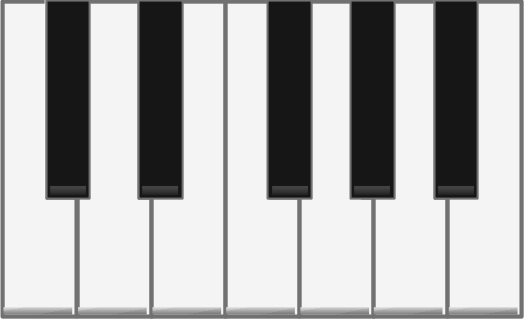
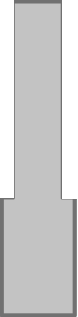
The program loads an image of a complete piano octave, i.e., iPianoOctave.png, to display a piano keyboard with 12 keys unpressed. Then, to generate the illusion of piano keys being pressed, it selectively adds the following images to the display:
# iPianoSimple.py## Demonstrates how to build a simple piano instrument playable# through the computer keyboard.#frommusicimport*fromguiimport*Play.setInstrument(PIANO)# set desired MIDI instrument (0-127)# load piano image and create display with appropriate sizepianoIcon=Icon("iPianoOctave.png")# image for complete pianodisplay=Display("iPiano",pianoIcon.getWidth(),pianoIcon.getHeight())display.add(pianoIcon)# place image at top-left corner# load icons for pressed piano keyscDownIcon=Icon("iPianoWhiteLeftDown.png")# CcSharpDownIcon=Icon("iPianoBlackDown.png")# C sharpdDownIcon=Icon("iPianoWhiteCenterDown.png")# D# ...continue loading icons for additional piano keys# remember which keys are currently pressedkeysPressed=[]###################################################################### define callback functionsdefbeginNote(key):"""This function will be called when a computer key is pressed. It starts the corresponding note, if the key is pressed for the first time (i.e., counteracts the key-repeat function of computer keyboards). """globaldisplay# display surface to add iconsglobalkeysPressed# list to remember which keys are pressedprint("Key pressed is "+str(key))# show which key was pressedifkey==VK_ZandkeynotinkeysPressed:display.add(cDownIcon,0,1)# "press" this piano keyPlay.noteOn(C4)# play corresponding notekeysPressed.append(VK_Z)# avoid key-repeatelifkey==VK_SandkeynotinkeysPressed:display.add(cSharpDownIcon,45,1)# "press" this piano keyPlay.noteOn(CS4)# play corresponding notekeysPressed.append(VK_S)# avoid key-repeatelifkey==VK_XandkeynotinkeysPressed:display.add(dDownIcon,76,1)# "press" this piano keyPlay.noteOn(D4)# play corresponding notekeysPressed.append(VK_X)# avoid key-repeat# ...continue adding elif's for additional piano keysdefendNote(key):"""This function will be called when a computer key is released. It stops the corresponding note. """globaldisplay# display surface to add iconsglobalkeysPressed# list to remember which keys are pressedifkey==VK_Z:display.remove(cDownIcon)# "release" this piano keyPlay.noteOff(C4)# stop corresponding notekeysPressed.remove(VK_Z)# and forget keyelifkey==VK_S:display.remove(cSharpDownIcon)# "release" this piano keyPlay.noteOff(CS4)# stop corresponding notekeysPressed.remove(VK_S)# and forget keyelifkey==VK_X:display.remove(dDownIcon)# "release" this piano keyPlay.noteOff(D4)# stop corresponding notekeysPressed.remove(VK_X)# and forget key# ...continue adding elif's for additional piano keys###################################################################### associate callback functions with GUI eventsdisplay.onKeyDown(beginNote)display.onKeyUp(endNote)
Here is a demo of interacting with this program:
Creating a virtual piano – a variation
This code sample (Ch. 8, p. 279) demonstrates how to perform the same (above) task using parallel lists for coding economy.
# iPiano.py## Demonstrates how to build a simple piano instrument playable through# the computer keyboard.#frommusicimport*fromguiimport*Play.setInstrument(PIANO)# set desired MIDI instrument (0-127)# load piano image and create display with appropriate sizepianoIcon=Icon("iPianoOctave.png")# image for complete pianod=Display("iPiano",pianoIcon.getWidth(),pianoIcon.getHeight())d.add(pianoIcon)# place image at top-left corner# NOTE: The following loads a partial list of icons for pressed piano keys,# and associates them (via parallel lists) with the virtual keys# corresponding to those piano keys and the corresponding pitches.# These lists should be expanded to cover the whole octave (or more).# load icons for pressed piano keys# (continue loading icons for additional piano keys)downKeyIcons=[]# holds all down piano-key iconsdownKeyIcons.append(Icon("iPianoWhiteLeftDown.png"))# CdownKeyIcons.append(Icon("iPianoBlackDown.png"))# C sharpdownKeyIcons.append(Icon("iPianoWhiteCenterDown.png"))# DdownKeyIcons.append(Icon("iPianoBlackDown.png"))# D sharpdownKeyIcons.append(Icon("iPianoWhiteRightDown.png"))# EdownKeyIcons.append(Icon("iPianoWhiteLeftDown.png"))# F# lists of virtual keys and pitches corresponding to above piano keysvirtualKeys=[VK_Z,VK_S,VK_X,VK_D,VK_C,VK_V]pitches=[C4,CS4,D4,DS4,E4,F4]# create list of display positions for downKey iconsiconWidths=[0,45,76,138,150,223]# these are hardcoded!keysPressed=[]# holds which keys are currently pressed############################################################################# define callback functionsdefbeginNote(key):"""Called when a computer key is pressed. Implements the corresponding piano key press (i.e., adds key-down icon on display, and starts note). Also, counteracts the key-repeat function of computer keyboards. """foriinrange(len(virtualKeys)):# loop through all known virtual keys# if this is a known key (and NOT already pressed)ifkey==virtualKeys[i]andkeynotinkeysPressed:d.add(downKeyIcons[i],iconWidths[i],0)# "press" this piano keyPlay.noteOn(pitches[i])# play corresponding notekeysPressed.append(key)# and remember key (to avoid key-repeat)defendNote(key):"""Called when a computer key is released. Implements the corresponding piano key release (i.e., removes key-down icon, and stops note). """foriinrange(len(virtualKeys)):# loop through known virtual keys# if this is a known key (we can assume it is already pressed)ifkey==virtualKeys[i]:d.remove(downKeyIcons[i])# "release" this piano keyPlay.noteOff(pitches[i])# stop corresponding notekeysPressed.remove(key)# and forget key (for key-repeat)############################################################################# associate callback functions with GUI eventsd.onKeyDown(beginNote)d.onKeyUp(endNote)
Using Timers to schedule events
This code sample (Ch. 8, p. 283) demonstrates how to use timers to control a generative music system. This example is inspired by Brian Eno’s “Bloom” musical app for smartphones.
This program also demonstrates how to use a secondary display, in this case with a Slider, to control actions on the primary display.
# randomCirclesTimed.py## Demonstrates how to generate a musical animation by drawing random# circles on a GUI display using a timer. Each circle generates# a note - the redder the color, the lower the pitch; also,# the larger the radius, the louder the note. Note pitches come# from the major scale.#fromguiimport*fromrandomimport*frommusicimport*delay=500# initial delay between successive circle/notes##### create display on which to draw circles #####d=Display("Random Timed Circles with Sound")# define callback function for timerdefdrawCircle():"""Draws one random circle and plays the corresponding note."""globald# we will access the displayx=randint(0,d.getWidth())# x may be anywhere on displayy=randint(0,d.getHeight())# y may be anywhere on displayradius=randint(5,40)# random radius (5-40 pixels)# create a red-to-brown-to-blue gradient (RGB)red=randint(100,255)# random R component (100-255)blue=randint(0,100)# random B component (0-100)color=Color(red,0,blue)# create color (green is 0)c=Circle(x,y,radius,color,True)# create filled circled.add(c)# add it to the display# now, let's create note based on this circle# the redder the color, the lower the pitch (using major scale)pitch=mapScale(255-red+blue,0,255,C4,C6,MAJOR_SCALE)# the larger the circle, the louder the notedynamic=mapValue(radius,5,40,20,127)# and play note (start immediately, hold for 5 secs)Play.note(pitch,0,5000,dynamic)# create timer for animationt=Timer(delay,drawCircle)# one circle per 'delay' milliseconds##### create display with slider for user input #####title="Delay"xPosition=d.getWidth()/3# set initial position of displayyPosition=d.getHeight()+45d1=Display(title,250,50,xPosition,yPosition)# define callback function for sliderdeftimerSet(value):globalt,d1,title# we will access these variablest.setDelay(value)d1.setTitle(title+" ("+str(value)+" msec)")# create sliders1=Slider(HORIZONTAL,10,delay*2,delay,timerSet)d1.add(s1,25,10)# everything is ready, so start animation (i.e., start timer)t.start()
Here is the output:
We will see timers again used in chapter 10 for animation.
Live coding Terry Riley’s “In C”
Live coding is a music performance practice where performers code live (in front of an audience), and change portions of a running program on the fly to affect the musical output being produced. Live coding is particularly popular in Europe and Australia, with a growing presence in the US.
The following code sample demonstrates how to perform Terry Riley’s “In C” using live coding. PEM supports live coding by allowing you to make changes and re-execute portions of a running program (see PEM’s “Run” menu).
Performance Instructions
Each performer should do the following:
Run code below.
While code is running in PEM:
update lines 10 and 11 to contain the next musical pattern
when ready, press
On Mac: Shift-Command-P
On Windows (or Linux): Shift-CTRL-P
This executes only lines 10 and 11, and updates the music being played.
# TerryRiley.InC.py## Live coding performance of Terry Riley's "In C".# See http://www.flagmusic.com/content/clips/inc.pdffrommusicimport*fromtimerimport*# redefine these notes at willpitches=[E4,F4,E4]durations=[SN,SN,EN]# play above pitches and durations in a continuous loopdefloopMusic():globalpitches,durations# create phrase from current pitches and durationstheme=Phrase()theme.addNoteList(pitches,durations)# play itPlay.midi(theme)# get duration of phrase in millisecs (assume 60BPM)duration=int(theme.getBeatLength()*1000)# create and start timer to call this function# once recursively, after the elapsed durationt=Timer(duration,loopMusic,[],False)t.start()# start playingloopMusic()
Here is a live performance by a university laptop orchestra:
Temporal Recursion
The above code demonstrates an advanced technique, called temporal recursion (see lines 30-31). Temporal recursion was invented by Andrew Sorensen specifically for live coding.