Display
A Display is the window your GUI objects appear in. Build a GUI by adding shapes, images, text, and controls to it with add(). The window opens as soon as you create it. Inside the display the origin (0, 0) is the top-left corner; x increases to the right and y increases downward.
A program may have several displays open. Displays may contain any number of GUI objects, but they cannot contain another display.
Once a display has been created, you populate it by placing various GUI widgets and graphics objects on it. The library provides various GUI widgets and graphics objects.
A display's position is the top-left corner of the window, including its title bar and menu. A display's size and center are its drawable canvas.
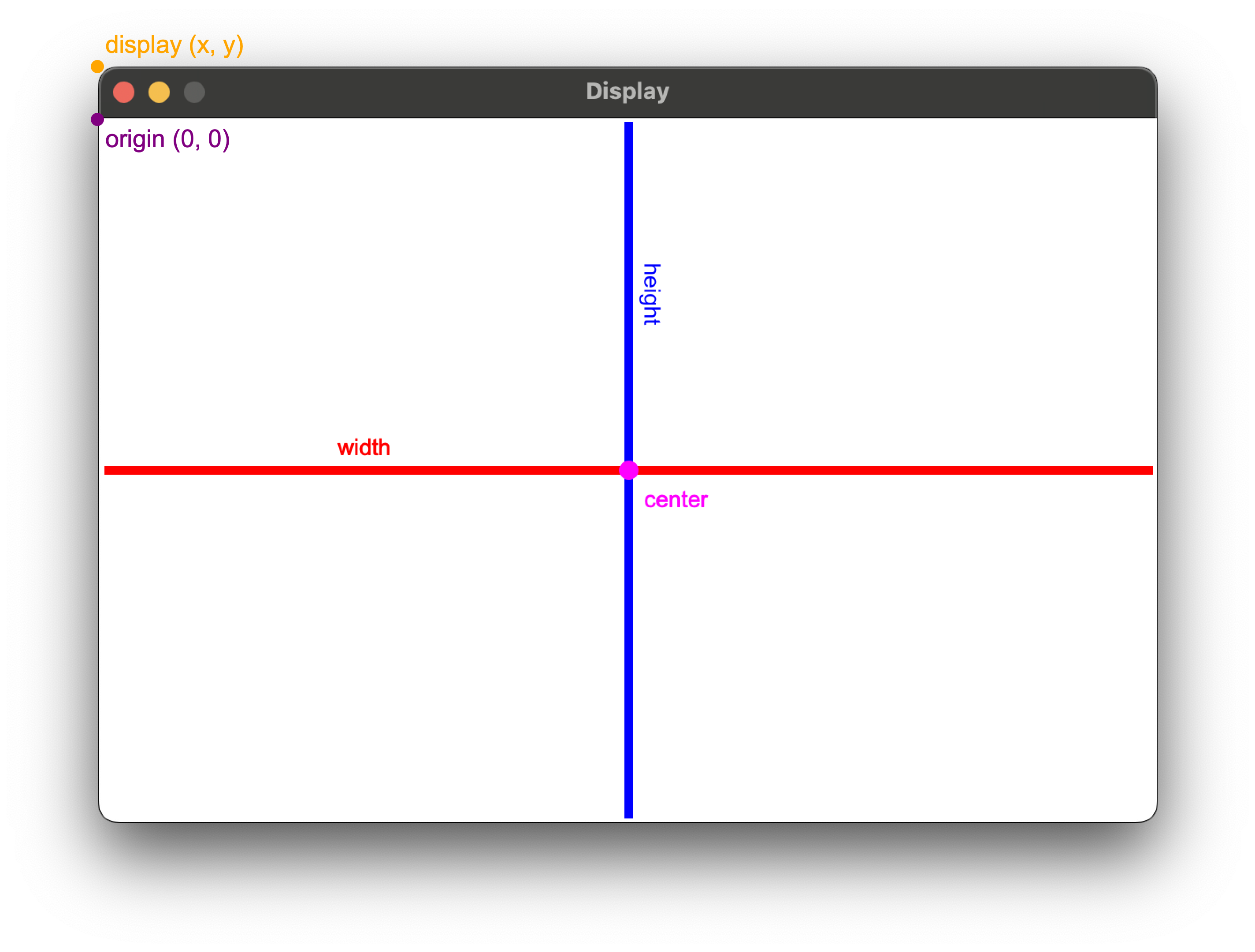
Creating a Display
You can create a Display using the following functions:
Display()
Display(title, width, height, x, y, color, antialias)
| Parameter | Type | Default | Description |
|---|---|---|---|
title |
str |
'' |
The window title. |
width |
int or float |
600 |
The width of the window's canvas area, in pixels. Set to FULL to fill the screen's width. |
height |
int or float |
400 |
The height of the window's canvas area, in pixels. Set to FULL to fill the screen's height. |
x |
int or float |
0 |
The horizontal position of the window's top-left corner on the screen, in pixels. |
y |
int or float |
50 |
The vertical position of the window's top-left corner on the screen, in pixels. |
color |
Color |
Color.WHITE |
The background color. |
antialias |
bool |
True |
Whether to smooth the edges of shapes and text on the display. Images and drawPoint() always keep crisp pixels. |
For example,
display = Display("Simple GUI", 120, 60)
Functions
Once a Display has been created, the following functions are available:
| Function | Description |
|---|---|
add(item) |
Add an object to the display. |
remove(item) |
Remove an object from the display. |
removeAll() |
Remove every object from the display. |
getItems() |
Return the objects currently in the display. |
Layering GUI Objects
GUI objects on a Display are layered. Typically, the most recent object sits on top of the others (order = 0). You can change the order
| Function | Description |
|---|---|
addOrder(item, order) |
Add an object to the display on a given layer. |
getOrder(item) |
Return the layer an object sits on within the display. |
setOrder(item, order) |
Move an object to a different layer within the display. |
Manipulating the Display
These common functions are useful for updating how a Display appears on the screen.
Additionally, the following functions are available:
| Function | Description |
|---|---|
getTitle() |
Return the display's title. |
setTitle(title) |
Set the display's title. |
getColor() |
Return the display's background color. |
setColor() |
Set the display's background color. |
show() |
Show the display. |
hide() |
Hide the display. |
close() |
Close the display. |
save(filename) |
Save a picture of the display to an image file. |
setToolTipText() |
Set the hover text shown over the display. |
showMouseCoordinates() |
Show the mouse position in the display's tooltip as the mouse moves. |
hideMouseCoordinates() |
Stop showing the mouse position in the display's tooltip. |
onClose() |
Register a function to call when the display is closed. |
Adding Menus
Menu objects are different from other GUI objects; instead of appearing on a Display, menu objects are added to the Display's menu bar, or as context (right click, pop-up) menus.
| Function | Description |
|---|---|
addMenu(menu) |
Add a menu to the display's menu bar. |
addPopupMenu(menu) |
Add a pop-up (right-click) menu to the display. |
Drawing Shapes
In addition to adding movable GUI objects to a Display, you can also draw shapes and text directly to the Display's background. Drawing shapes is faster than adding GUI objects, but drawn shapes can't be moved or erased without clearing the entire canvas (using clearDrawing()).
| Function | Description |
|---|---|
drawRectangle(x1, y1, x2, y2) |
Draw a rectangle straight onto the display. |
drawOval(x1, y1, x2, y2) |
Draw an oval straight onto the display. |
drawCircle(x, y, radius) |
Draw a circle straight onto the display. |
drawPoint(x, y) |
Draw a single point straight onto the display. |
drawArc(x1, y1, x2, y2) |
Draw an arc straight onto the display. |
drawArcCircle(x, y, radius) |
Draw a circular arc straight onto the display. |
drawPolyline(xPoints, yPoints) |
Draw a connected series of line segments straight onto the display. |
drawLine(x1, y1, x2, y2) |
Draw a line straight onto the display. |
drawPolygon(xPoints, yPoints) |
Draw a polygon straight onto the display. |
drawIcon(filename, x, y) |
Draw an image straight onto the display. |
drawLabel(text, x, y) |
Draw a line of text straight onto the display. |
drawText(text, x, y) |
Draw a line of text straight onto the display. |
clearDrawing() |
Erase everything drawn with the draw functions. |