Download
Platforms
PythonMusic runs on Windows, Mac, and Linux.
Download and Install
To install PythonMusic, simply download the PEM (Python Environment for Music) editor, version v1.2.2 (released September 26, 2026).
There is also a pip installation for advanced users.
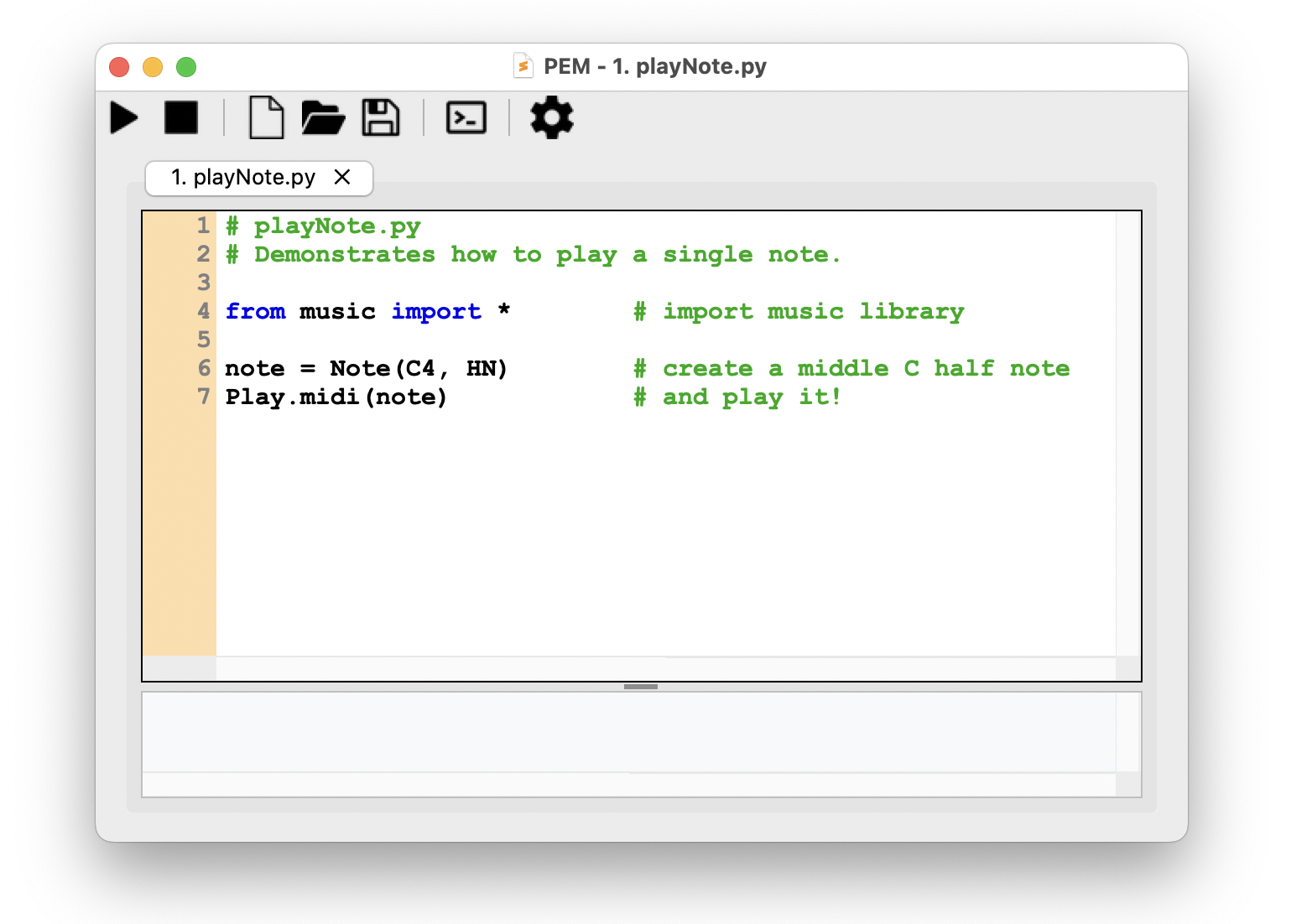
PEM is bundled with all PythonMusic libraries, and other essential Python libraries. It should be enough for most uses.
Installation Instructions
- Windows
- Mac
- Linux (and Intel Mac)
- Download the Examples
- Test your Installation
- Install via pip (Advanced)
- Previous Versions
Windows
- Download PEM for Windows.
- Unzip the downloaded file.
- Double-click PEM.exe to run.
- (Optional) Right-click PEM.exe, and select "Create Shortcut". Move this shortcut to your Desktop for easy access.
Windows Security Issue
Some Windows systems flag PEM.exe as malware. This is a common issue caused by Windows strict security protocols, and does not mean the application is unsafe. If so:
- Click "More info" on the warning screen.
- Select "Run anyway" (you need to be logged as Administrator to see this option).
If deleted or blocked by Windows Defender (Antivirus):
- Open "Windows Security" from your Start menu.
- Navigate to "Virus & threat protection > Protection history".
- Locate the blocked
PEM.exefile, click on it, and select "Allow on device" (or "Restore"). - Extract
PEM.exefrom the .zip file again, if the executable was deleted.
Mac
- Download PEM for macOS.
- Double-click the downloaded file to extract PEM.
- Move PEM to your Applications folder.
- Double-click PEM to run.
- (Optional) While PEM is running, control-click the PEM icon on the taskbar. Select “Options” and “Keep in Dock” for easy access.
Mac Security Issue
Some versions of macOS flag the PEM application as damaged (or malware). This is a common issue caused by Apple's strict security protocols, and does not mean the application is unsafe. If so:
- Select "Cancel" (not "Move to Trash"!).
- Open System Settings.
- In "Privacy & Security", scroll down to see a Security alert for PEM.
- Select "Allow", and open PEM again.
Alternatively - after you move PEM to the Applications folder:
- Open a Terminal window.
- Type this command:
sudo xattr -dr com.apple.quarantine /Applications/PEM.app/
Linux (and Intel Mac)
The PEM executable is not available for Linux and Intel-based Macs.
To install PythonMusic see install via pip.
Download the Examples
PythonMusic comes with online examples. You can also download them.
Test your Installation
To verify that your environment is set up correctly, Copy and paste the code below directly into the PEM editor, and click "Run":
| playNote.py | |
|---|---|
1 2 3 4 5 6 7 | |
NOTE: The first time you run this program, PythonMusic will ask you to download a high-quality soundfont (FluidR3 G2-2.sf2). Type "y" at the prompt. This will happen only once, and is necessary to play high-quality MIDI sounds.
If you hear this note playing, everything is perfect!
Install via pip (Advanced)
For more advanced users, install PythonMusic via pip. This lets you use PythonMusic alongside the full Python ecosystem of libraries:
- Make sure you have Python3 installed (version 3.12 preferred).
- Open Terminal, and type:
pip install PythonMusic
If this fails, see Troubleshooting Pip.
Other Python Versions
PythonMusic works on Python 3.12 and later, but Python 3.12 is the smoothest install. A few of PythonMusic's dependencies don't yet offer ready-made versions for Python 3.13 and 3.14, so on those versions pip has to build them on your computer — which needs the extra tools described under Troubleshooting Pip. If you'd rather not set those up, install Python 3.12.
PEM with pip
Once PythonMusic is installed with pip, you can access PEM via the command line:
python -m pem
pem
You can also open a file with PEM:
python -m pem <filename.py>
or
pem <filename.py>
Test your Pip Installation
To verify that your environment is set up correctly, Copy and paste the code below directly into the PEM editor, and click "Run":
| playNote.py | |
|---|---|
1 2 3 4 5 6 7 | |
You can run this in one of two ways:
-
Using PEM: Copy and paste the code above directly into the PEM editor, and click "Run".
-
Using the command line: Save the code in a file named
playNote.py, and run it from your terminal (notice the "-i", which stands for interactive mode):
python -i playNote.py
NOTE: The first time you run this program, PythonMusic will ask you to download a high-quality soundfont (FluidR3 G2-2.sf2). Type "y" at the prompt. This will happen only once, and is necessary to play high-quality MIDI sounds.
If you hear this note playing, everything is perfect!
Previous Versions
Need an older release? All previous versions of PEM and PythonMusic are available on the PythonMusic releases page on GitHub.